Life dashboard app
A life dashboard for your year, money and goals
A life dashboard is one place that shows where your plans, projects and money stand, so you can tell at a glance whether life is moving. PLANYEAR is a ready-made one, and it’s free — open it in your browser and start filling it in instead of building it first.
What is a life dashboard?
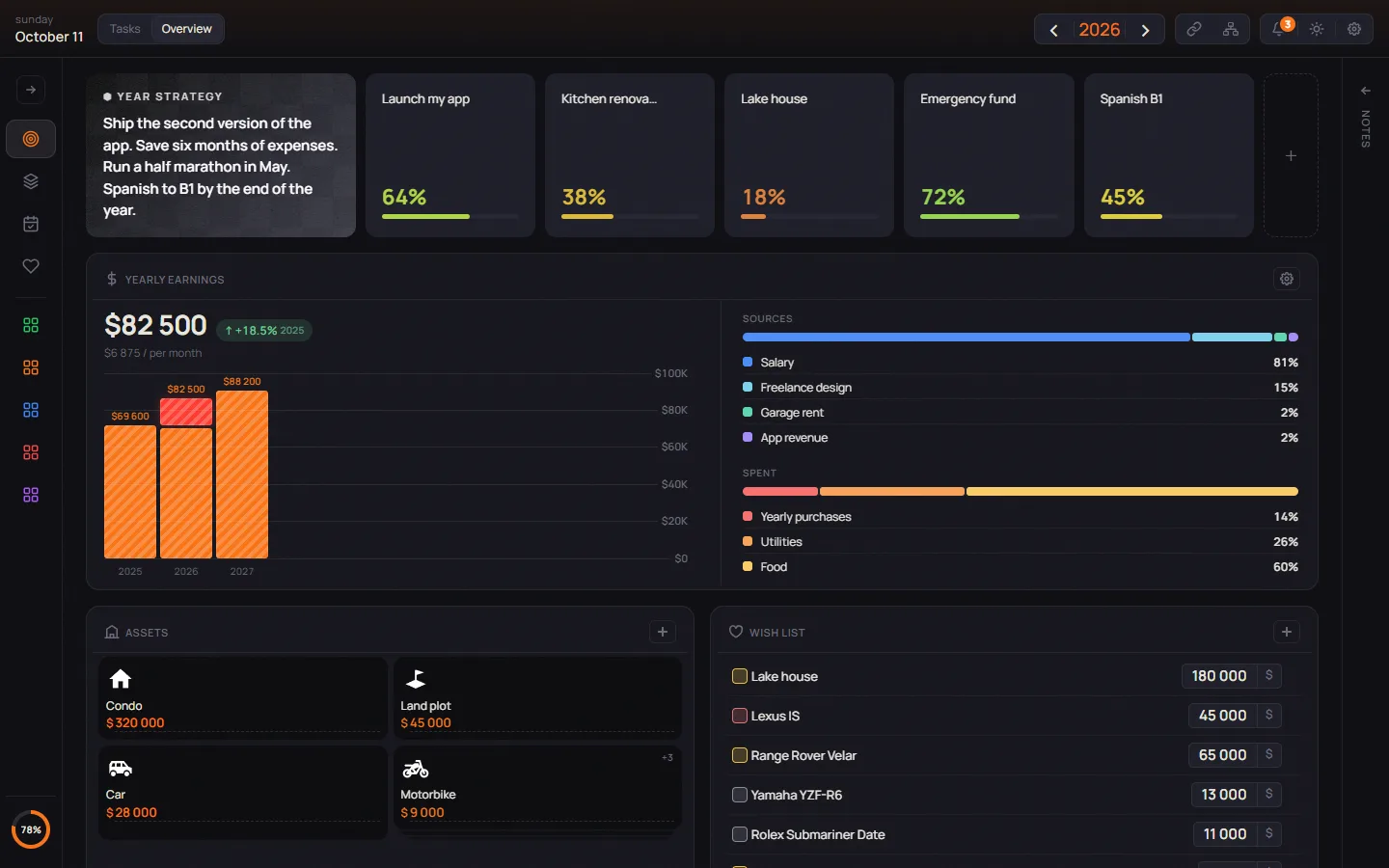
A life dashboard is a single page that brings together the parts of life you want to steer — plans, projects, money, the things you own and the things you want — and shows their state at a glance. Unlike a to-do list, it answers “where am I?” rather than “what’s next?”, so you notice early when a goal stalls.
You may know it as a personal life dashboard or a life OS. Most are built by hand — in Notion, in a spreadsheet, lately with an AI assistant — and the idea is always the same: fewer places to check, one honest picture.
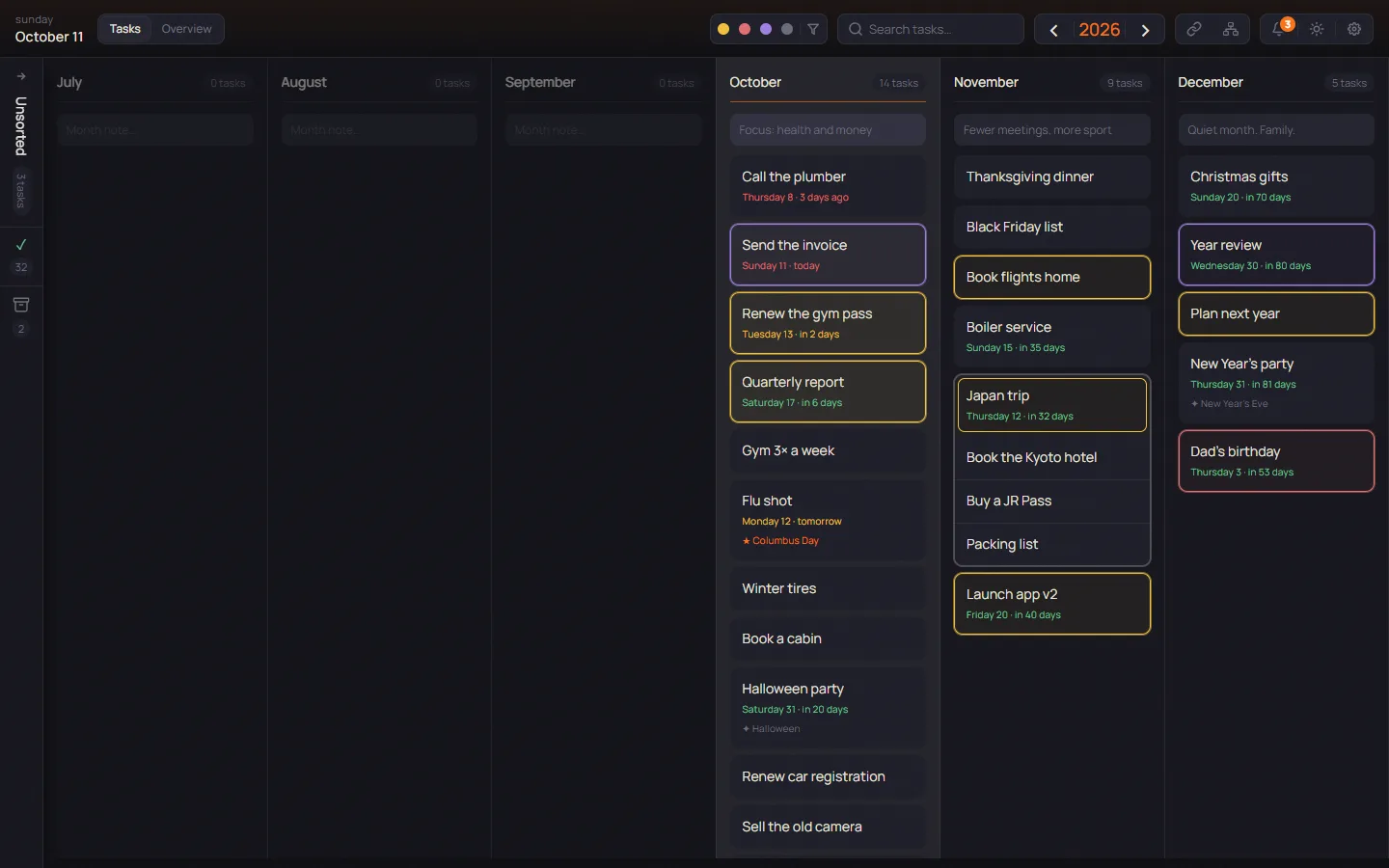
PLANYEAR is built around the year. It began as an online year planner and grew into a dashboard for everything around it, on two pages: Tasks, with the months, and Overview, with projects, money, assets and wishes.
What to put on your dashboard
The year, month by month
Tasks has a column for every month, plus Unsorted for ideas without a month. Put the big things where they belong — a trip in August, a renewal in March — mark what matters in yellow, red or purple, and drop one card onto another to keep related tasks in one frame. A double-click sends a finished task to Done.
Projects with progress
Each goal you’re working on becomes a project card with a progress bar, and behind it a graph of its own — a canvas for notes, pictures and steps. Move the slider, and the percentage follows wherever the project appears.
Money for the year
Yearly earnings adds up your income sources, each in its own currency, into one total, with a bar per year to compare. Below sit the expense blocks — Yearly purchases, Utilities and any you add — each a list of quantity × price. Together they show how much of the year’s income is already spoken for.
Assets and the asset map
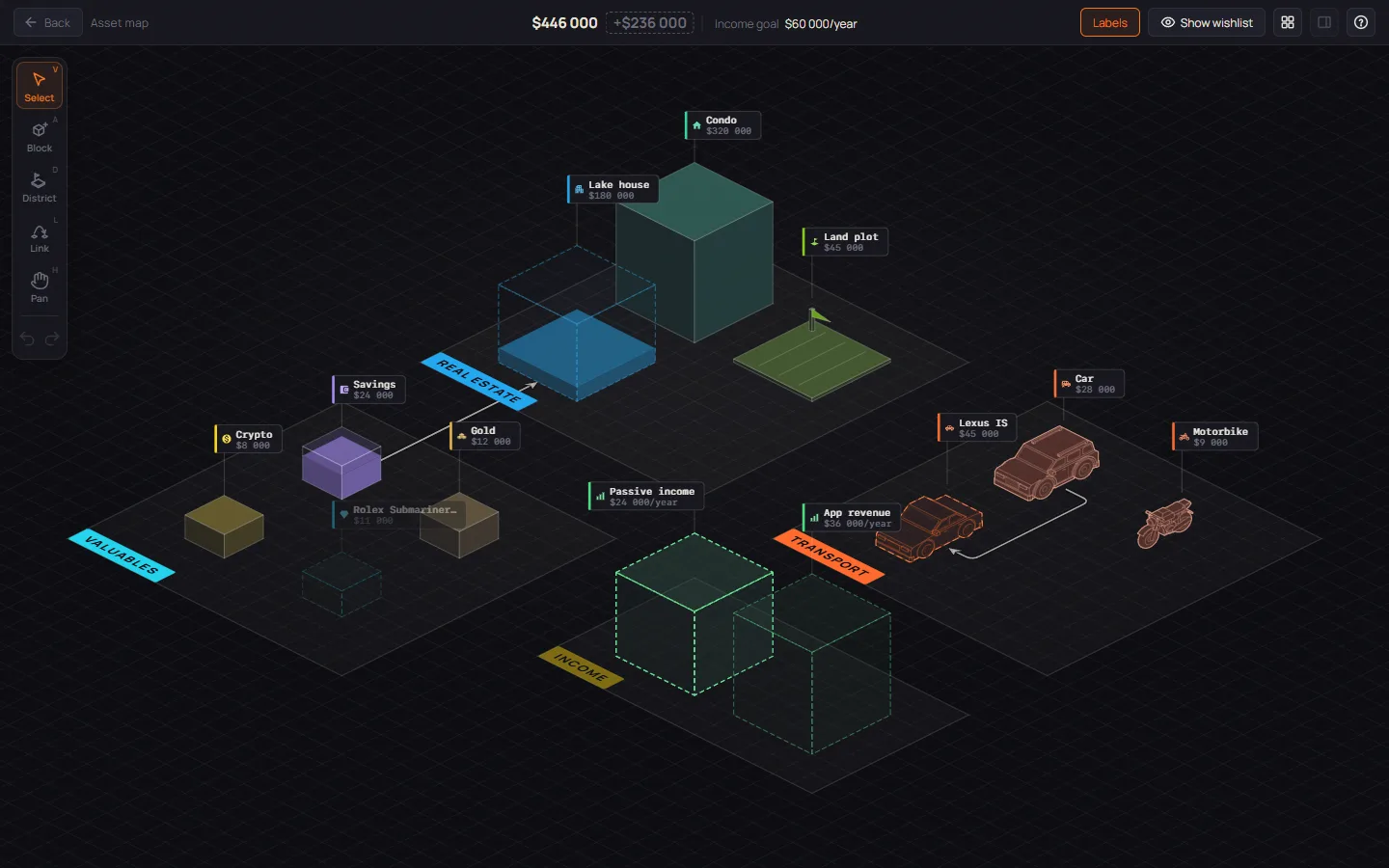
Assets is a plain list of what you own and what it’s worth. The asset map draws it as an isometric city: districts for property, transport and valuables, blocks as tall as their value, wishes as dashed outlines beside them.
Wishes
The wish list keeps what you want with a photo, a price, a link and a priority. Prices in different currencies add up to one total, and a wish you’ve got stays as history.
Days and marks
The calendar shows the year as twelve month grids. Each day holds its own small tasks; tick one ✓ when it’s done, and what wasn’t done stays on its day unticked. Tasks can repeat every day, every other day, every week or every month; dated board tasks and birthdays show up too.
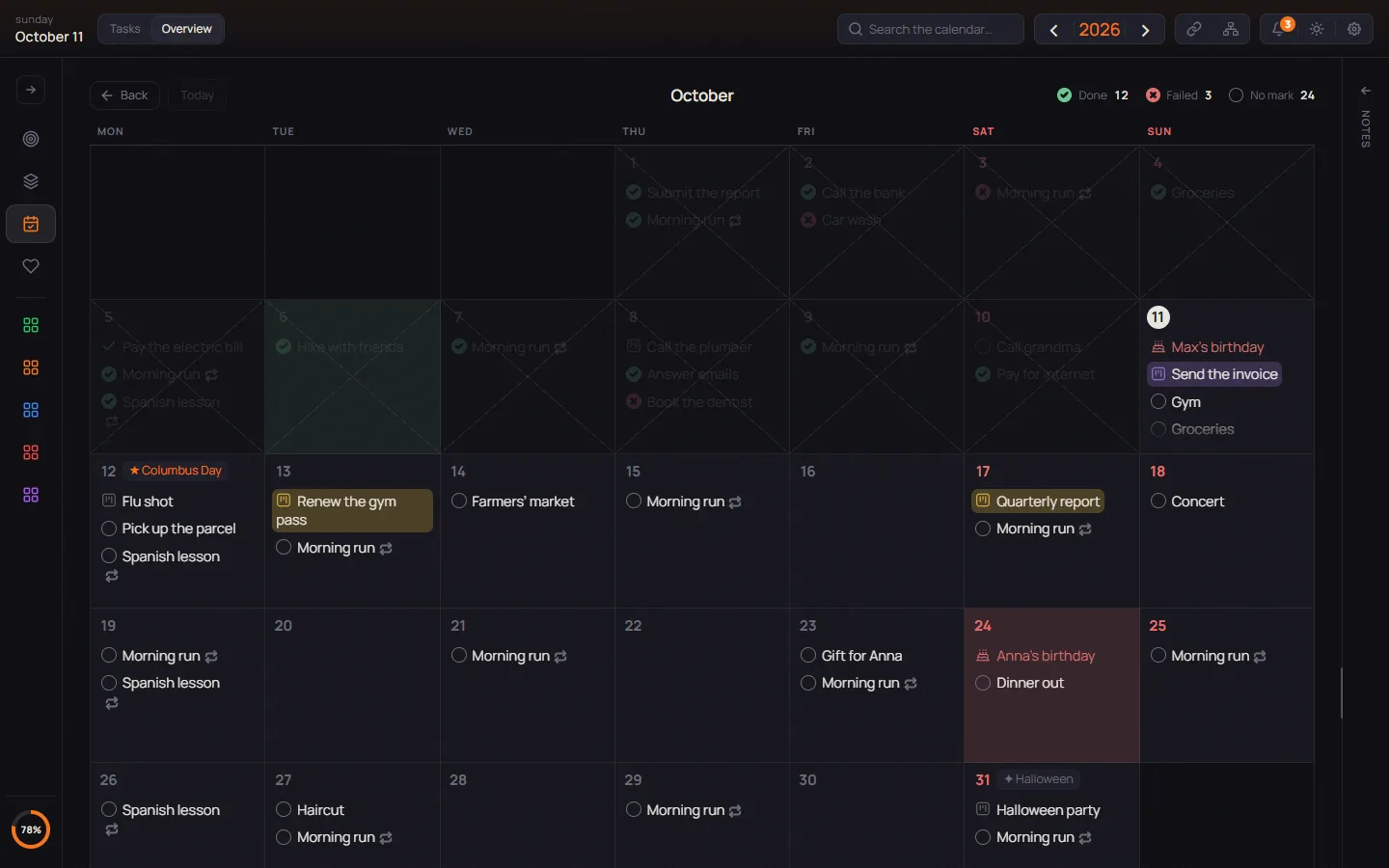
Around all this: notes under the board and a bell for birthdays, colored tasks and sharp moves in exchange rates.
Notion template, a homemade dashboard with AI, or a ready-made app
Look for a life dashboard template, and you’ll mostly find Notion. Others build their own with an AI assistant such as Claude. Both work; the difference is where your time goes.
| Notion template | Homemade with AI | PLANYEAR | |
|---|---|---|---|
| Setup | An hour or more to adapt a template | An evening or a weekend of prompts, fixes and hosting | About 10 minutes: sign up and start typing |
| What you maintain | Databases, relations, formulas | The code, hosting, backups, every new feature | Only your own entries |
| Flexibility | Anything you can model in Notion | Anything you can describe | A fixed set: year, calendar, projects, money, assets, wishes |
| Privacy | Your Notion workspace, under Notion’s terms | Depends on where you host it and what you paste into chats | Encrypted in your browser; the server stores only ciphertext |
| Price | Free plan for personal use; some templates are paid | Your AI subscription, plus hosting | Free |
If building the system is half the fun, a template or your own app gives total freedom. If you want the dashboard more than the project, a ready-made app saves the evenings. And if you’d rather keep the year on paper, there is a free printable year planner for 2027.
Set up your life dashboard in 10 minutes
- Create a free account with your email or Google, save your recovery key, pick your language and country and press “Get started”.
- Fill in the months. On Tasks, type into “+ Task” under each month; ideas without a month go to Unsorted. Click a task and add a day number to give it a date in the calendar.
- Color what matters. While editing a task, press Shift+Y, Shift+R or Shift+V. Red is for birthdays: they come back every year, and the bell reminds you a day ahead.
- Add your projects. Switch to Overview, press the “+” at the end of the projects row and drag each bar to where it really stands.
- Put in the money. In Yearly earnings, press “Add a source”. Under Expenses, fill in Yearly purchases and Utilities, or press “Add a block”.
- Add assets and wishes with “Add an asset” and “Add a wish”, then click the Assets header to open the asset map.
Private by design
Everything you enter is encrypted in your browser (AES-256) before it’s sent. The server stores only ciphertext and never sees the key — no one can read your data from the database, not even us. Keep the recovery key you’re given: a reset by email brings back sign-in, not the data, unless you set the same password.
Ctrl+M hides your entries behind asterisks when someone looks at your screen. The demo needs no account: its made-up data lives in your browser tab and is gone when you close it.
Frequently asked questions
Is PLANYEAR free?
Yes. Everything on this page is free, and signing up asks for no payment details.
Is there a mobile app?
Not one to install. PLANYEAR is a web app: open planyear.online in your phone’s browser and sign in. Changes reach your other devices within seconds.
Can I import from Notion or Google Calendar?
No. There is no import from Notion, Google Calendar or other apps, and no calendar sync. You can export what you enter in PLANYEAR as a JSON file and import it back in Settings → Data.
Which languages does it speak?
The interface comes in 18 languages, from English and Spanish to Japanese and Arabic. In Settings → Language & region you also pick your country: it sets the holidays on your dates (about 200 countries are covered) and your currencies.
Is my data private?
Yes. Your data is encrypted in the browser and stored in the EU only as ciphertext. With email sign-in your password also encrypts the data; with Google you set a separate encryption password once.
How is a life dashboard different from a to-do app?
A to-do app keeps your eyes on today’s list. A life dashboard shows the whole year and what a list doesn’t hold — money, assets, wishes, the progress of each project — so you see whether you’re moving, not just busy.